Locale
teamworkbot

teamworkbot user guide

Everything you need to work with your team of bots: how to write to them, what to approve, how to let them run on their own and how to connect them to your services.

The app is in Italian for now, so the screenshots are too. In this guide each label appears as it does on screen, in Italian, followed by its meaning in English.

1The basics

  • Space. Your workspace: bots, chats, files, keys and costs live there and are not visible from other spaces. A studio or agency can have one space per client.
  • Bot. A colleague with a specific job (calendar, email, quotes, reports…), its own instructions, its Claude model and the tools it may use.
  • Team. Bots hand work to each other. Chief of Staff receives general requests and routes them to the right bot.
  • Approvals. Reading, searching and preparing drafts need no permission. Anything that reaches other people (emails, invitations, messages, payments, writes to external services) waits for your yes.
  • Routines. Jobs that start on their own at a set time: the morning summary, the mail check, the website check.
  • Memory. Bots do not remember everything by themselves: they keep short work notes and, if you connect it, read the vault where the Curator writes your client notes.

2Getting started

After logging in you see «I tuoi bot» (Your bots): every bot with its latest message, grouped by department (Direzione management, Marketing, Business, Tech). At the top an orange box tells you how many actions are waiting for your approval.

The sidebar leads to every section: Squadra (Team), Bot, Approvazioni (Approvals), Attività e costi (Activity and costs), Routine (Routines), Libreria (Library), Import WhatsApp e vocali (WhatsApp and voice import), Impostazioni (Settings). Below are the bots with their status: «al lavoro» (working), «1 azione da approvare» (1 action to approve) or their last reply.

At the bottom of the sidebar, the button with your initials opens the personal menu: Il mio account (My account: name and password), the theme Automatico, Chiaro or Scuro (automatic, light, dark), switching space and logging out. Connetti app (Connect apps) leads to your connected services.
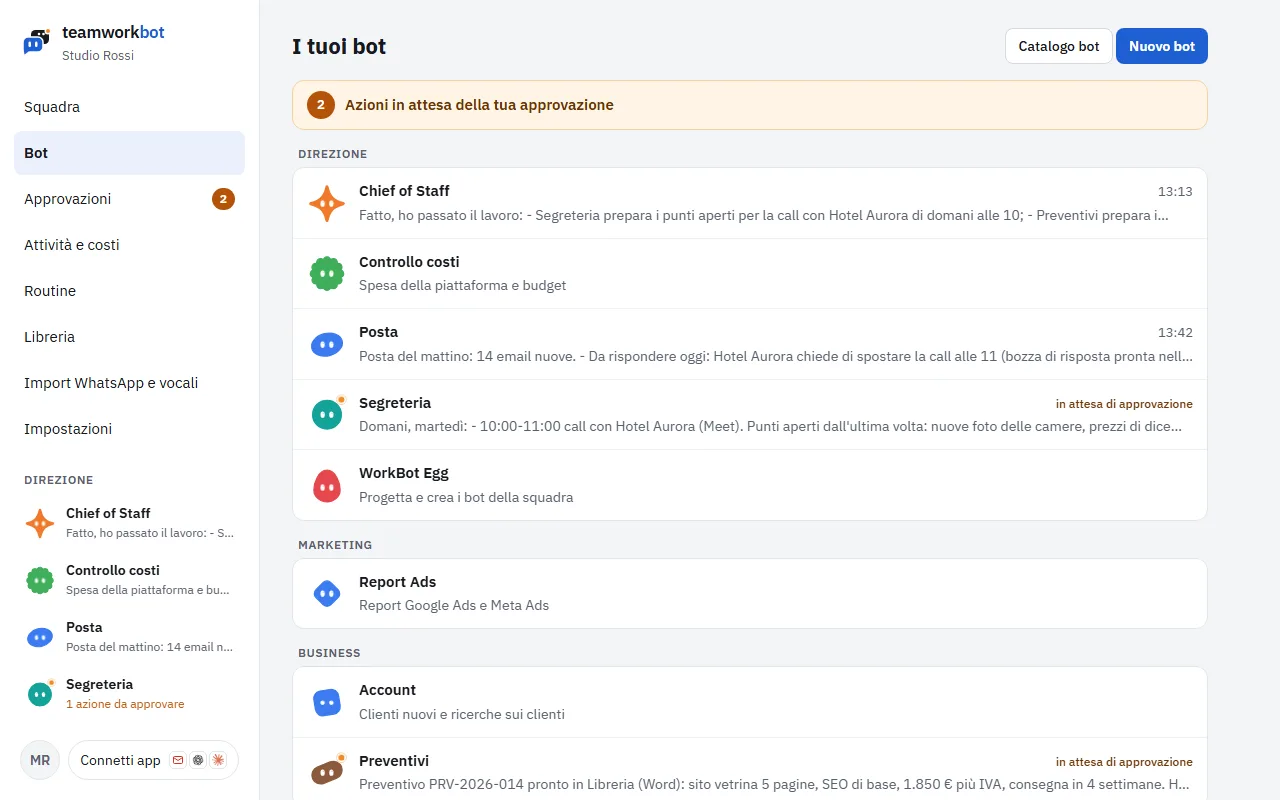
The «I tuoi bot» (Your bots) list with bots grouped by department and the box of pending actions
Screenshot: The «I tuoi bot» (Your bots) list with bots grouped by department and the box of pending actions

3Talking to a bot

Open a bot and write to it as you would to a colleague, in plain language. The reply arrives within seconds; while it works you see the «al lavoro» (working) indicator. You can close the page: the work carries on on the server.

  • Attachments. With + or by dragging a file into the message box: images, PDFs, documents. The bot reads them together with your message.
  • Voice messages. Press the microphone, speak and press it again: the recording is transcribed and sent to the bot.
  • «Insegna un'attività» (Teach a task). From the + button: describe step by step a job you repeat (with a voice message or screenshots too). The team saves it as a procedure and follows it next time.

On the right there is a summary of the last job: outcome, model used, steps, cost compared with the job budget, tools used and the bot's routines. Impostazioni bot (Bot settings) and Routine are at the top.

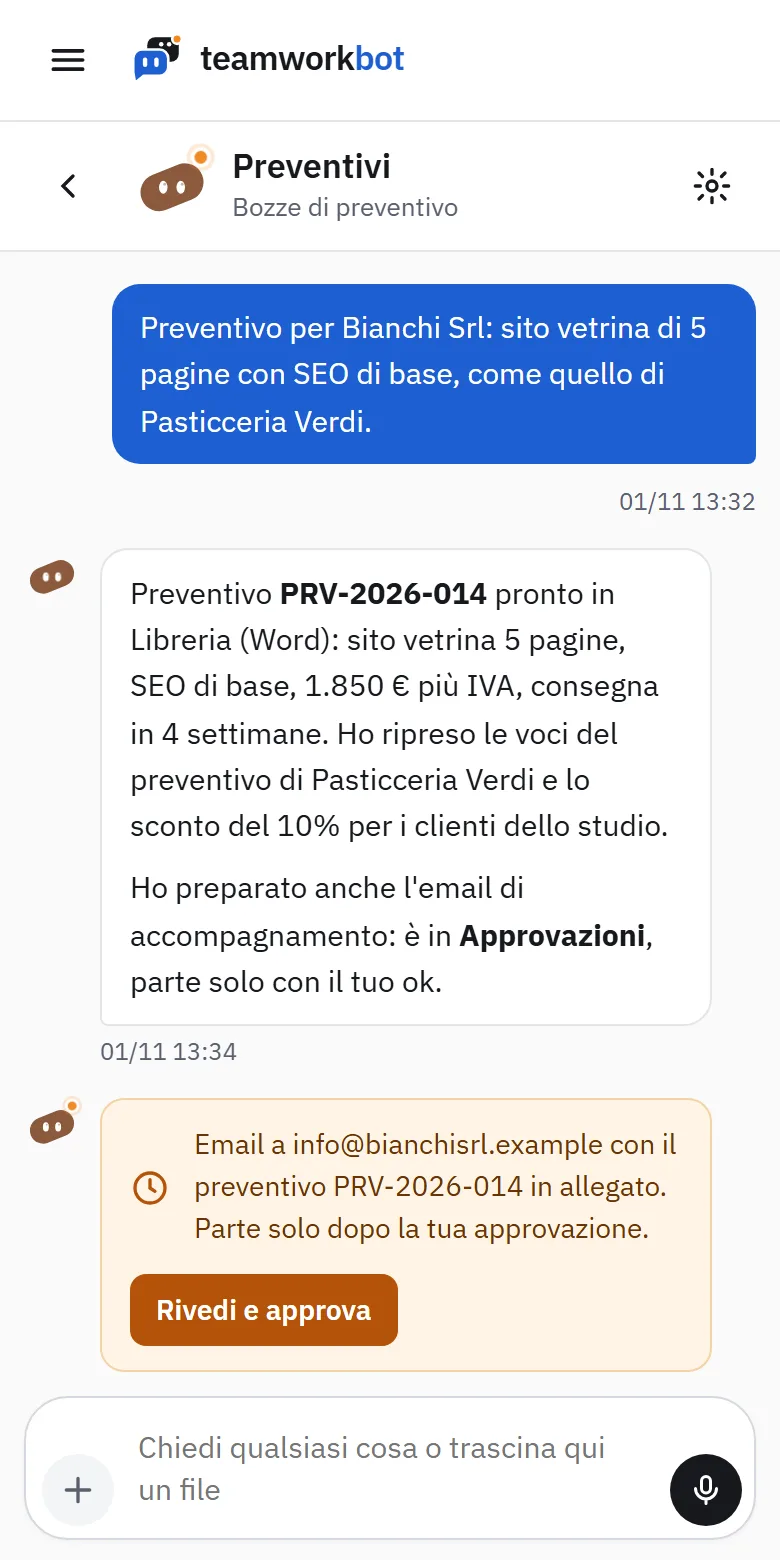
Everything works the same on a phone: open the sidebar from the menu at the top left.
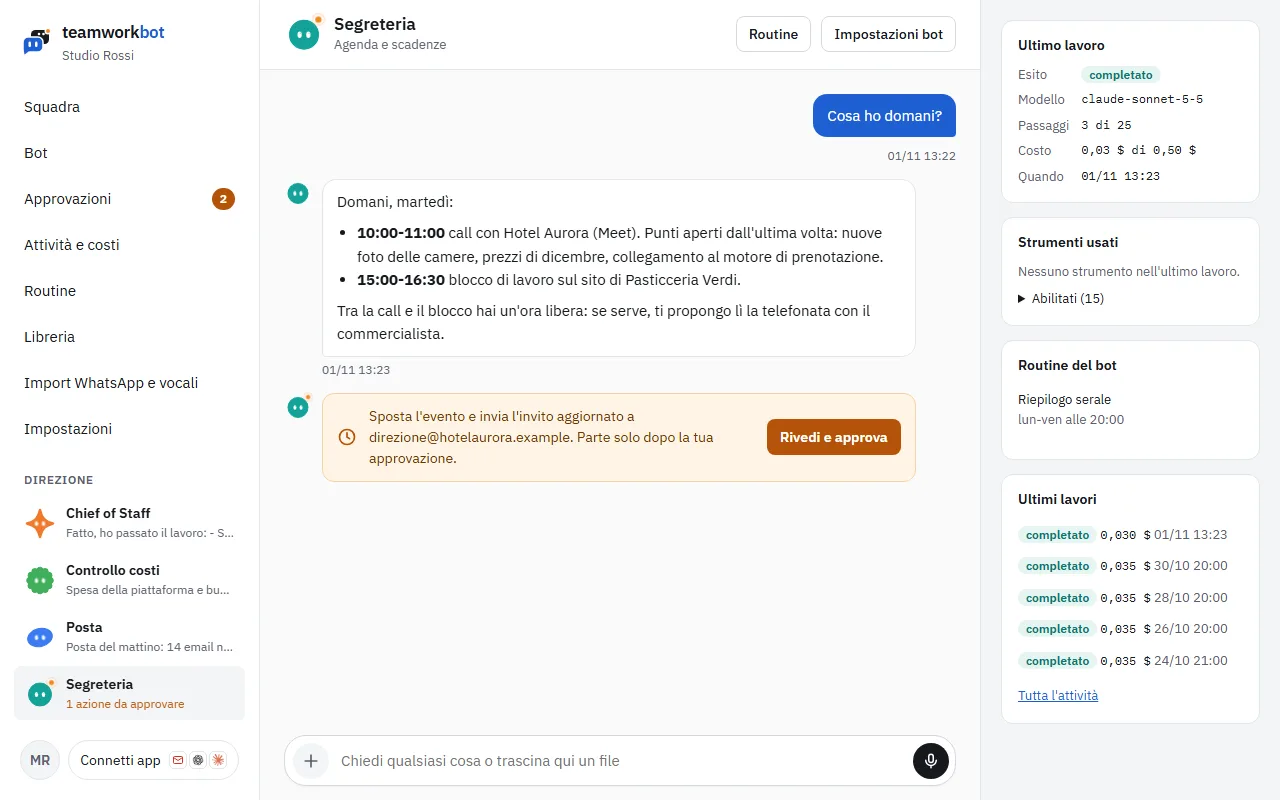
Chat with the Segreteria (Secretary) bot: a question, the reply with tomorrow's appointments and an approval request
Screenshot: Chat with the Segreteria (Secretary) bot: a question, the reply with tomorrow's appointments and an approval request
The Preventivi (Quotes) bot chat on a phone, with the approval request for the email to the client
Screenshot: The Preventivi (Quotes) bot chat on a phone, with the approval request for the email to the client

4The team chat

In «Squadra» (Team) you write without choosing a bot: Chief of Staff works out who should handle it and passes the job on. The bots' replies and routine results arrive here, so you have a single place to look.

If you connect Telegram, the Telegram bot chat is the same team chat: write and approve from your phone. Use /smistamento to address Chief of Staff explicitly.
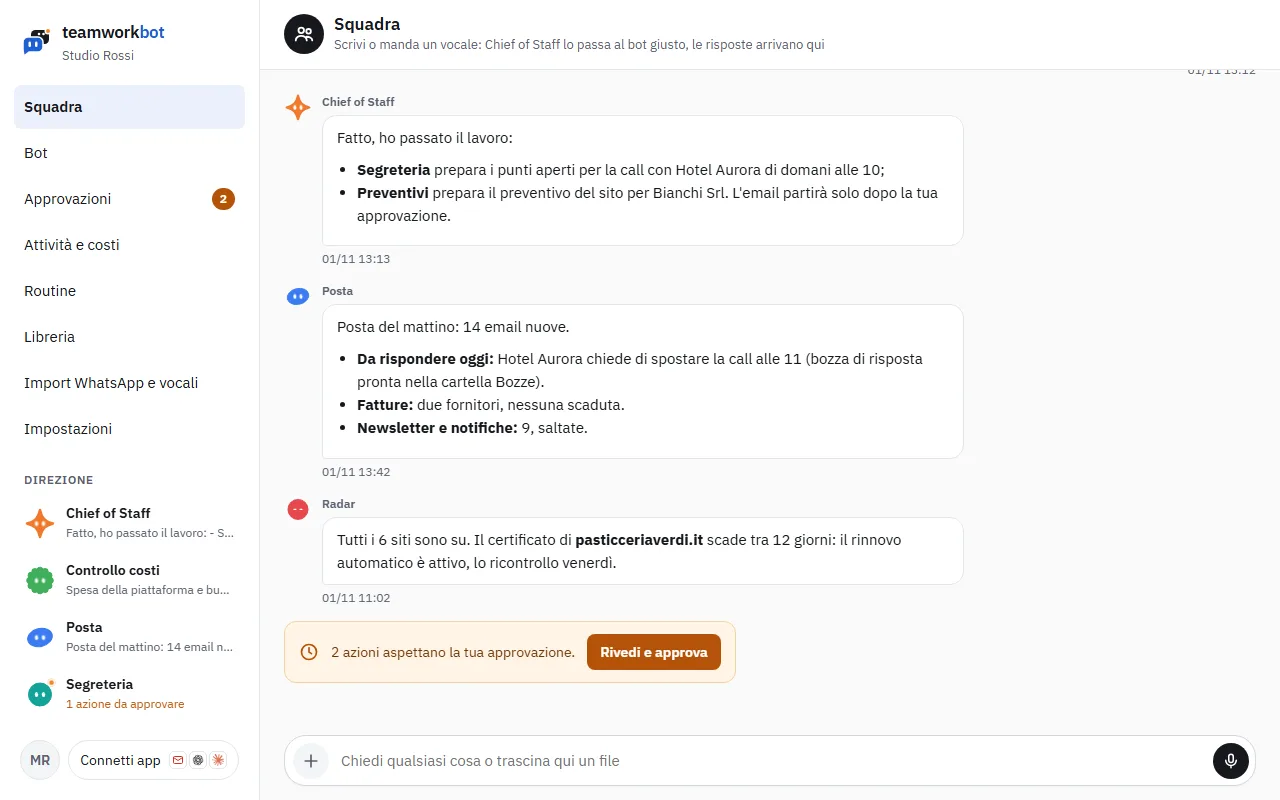
Team chat with Chief of Staff's message, the mail summary and the website check
Screenshot: Team chat with Chief of Staff's message, the mail summary and the website check

5Approvals

When a bot wants to do something towards the outside world, it does not do it: it prepares an approval request with the exact preview (recipients, subject, text, times) and its impact. You find it in Approvazioni (Approvals), in the bot's chat and, if connected, on Telegram.

  • «Approva» (Approve): the action runs once only, exactly as you see it, and the bot receives the outcome.
  • «Rifiuta» (Reject): you can write the reason; the bot reads it and takes it into account.
  • «Approva e ricorda» (Approve and remember): approves and adds the recipient to your trusted list, for automatic approvals.

The Eseguite (Done) and Rifiutate (Rejected) tabs keep the history. An action that fails is not retried automatically: you see it on the board and in the chat.
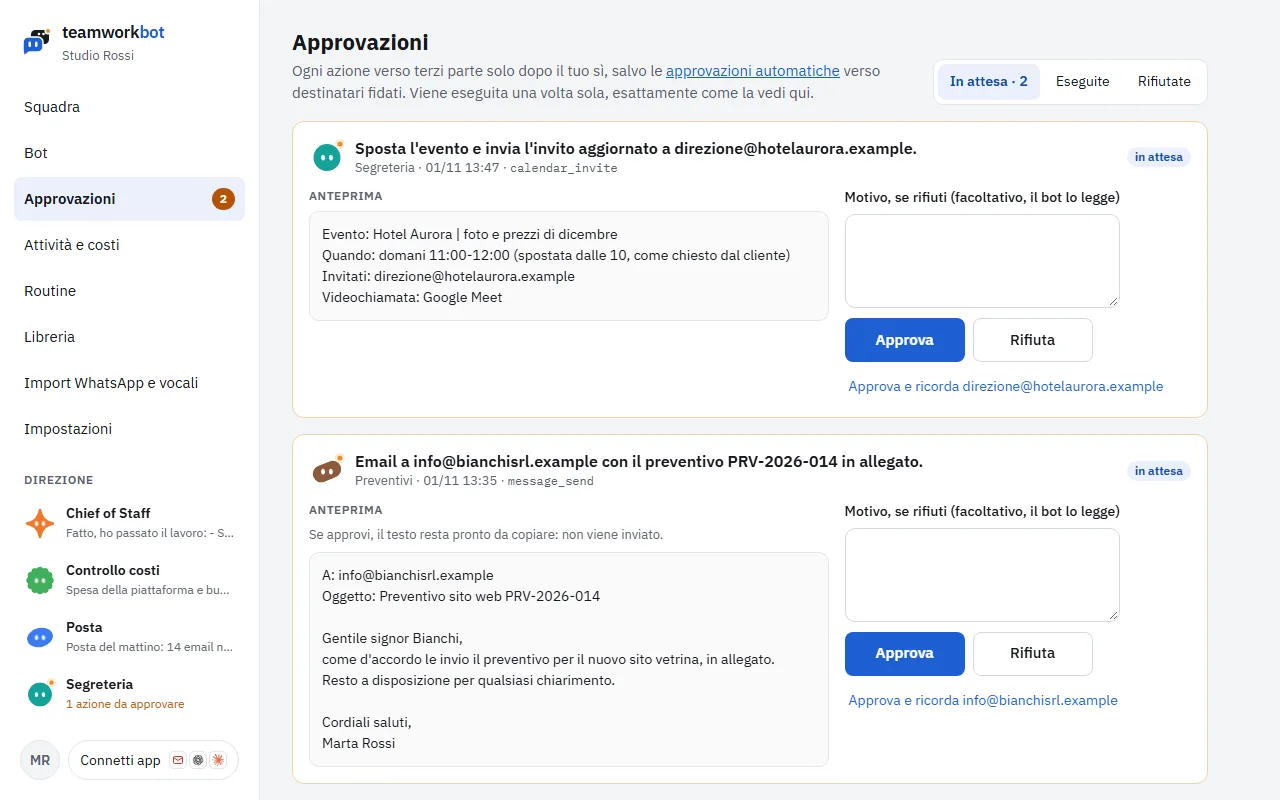
The approvals board with a calendar invitation and an email to a client waiting
Screenshot: The approvals board with a calendar invitation and an email to a client waiting

6Automatic approvals

In Impostazioni → Approvazioni automatiche (Settings → Automatic approvals) you can let emails to trusted recipients, new calendar events where every guest is trusted and WhatsApp messages to allowed chats (yourself and the chats or groups ticked in Impostazioni → WhatsApp) go out without a click. The rules are off until you switch them on. Everything the bots send is listed in Attività → Registro invii (Send log), filterable by routine.
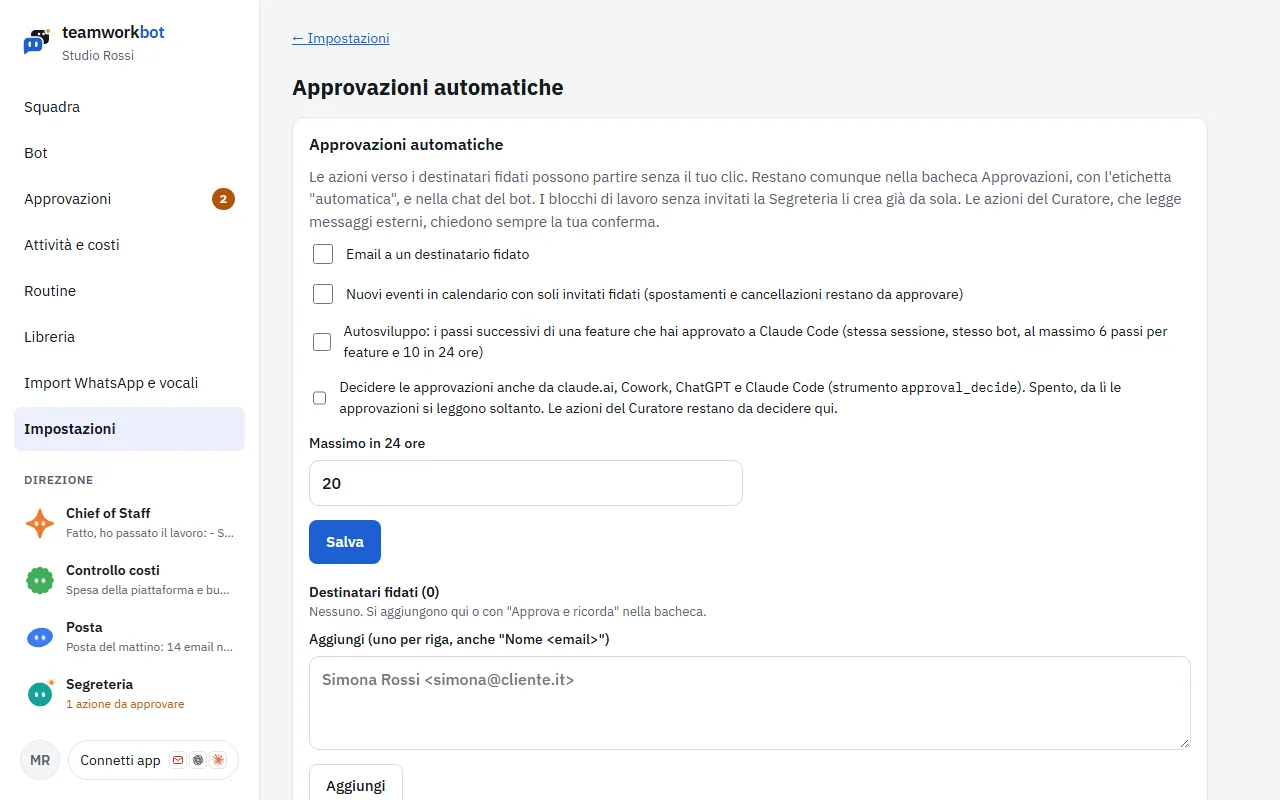
  • Automatic actions stay on the board with the «automatica» (automatic) label and in the audit log.
  • There is a daily maximum (20 by default): beyond it, manual confirmation comes back.
  • Moves, cancellations and WhatsApp messages always ask for confirmation, as does everything proposed by the Curator, which reads external messages.
Automatic approval settings with trusted recipients and the 24-hour limit
Screenshot: Automatic approval settings with trusted recipients and the 24-hour limit

7Routines

A routine is an instruction a bot receives on its own at a set time. Catalogue bots come with their routines switched off: turn them on here with «Attiva» (Enable).

  • Schedule. Written with five fields: minute, hour, day of month, month, day of week. 30 7 * * 1-5 means "at 7:30 from Monday to Friday". Below the line you see it in words. Daylight saving time is handled.
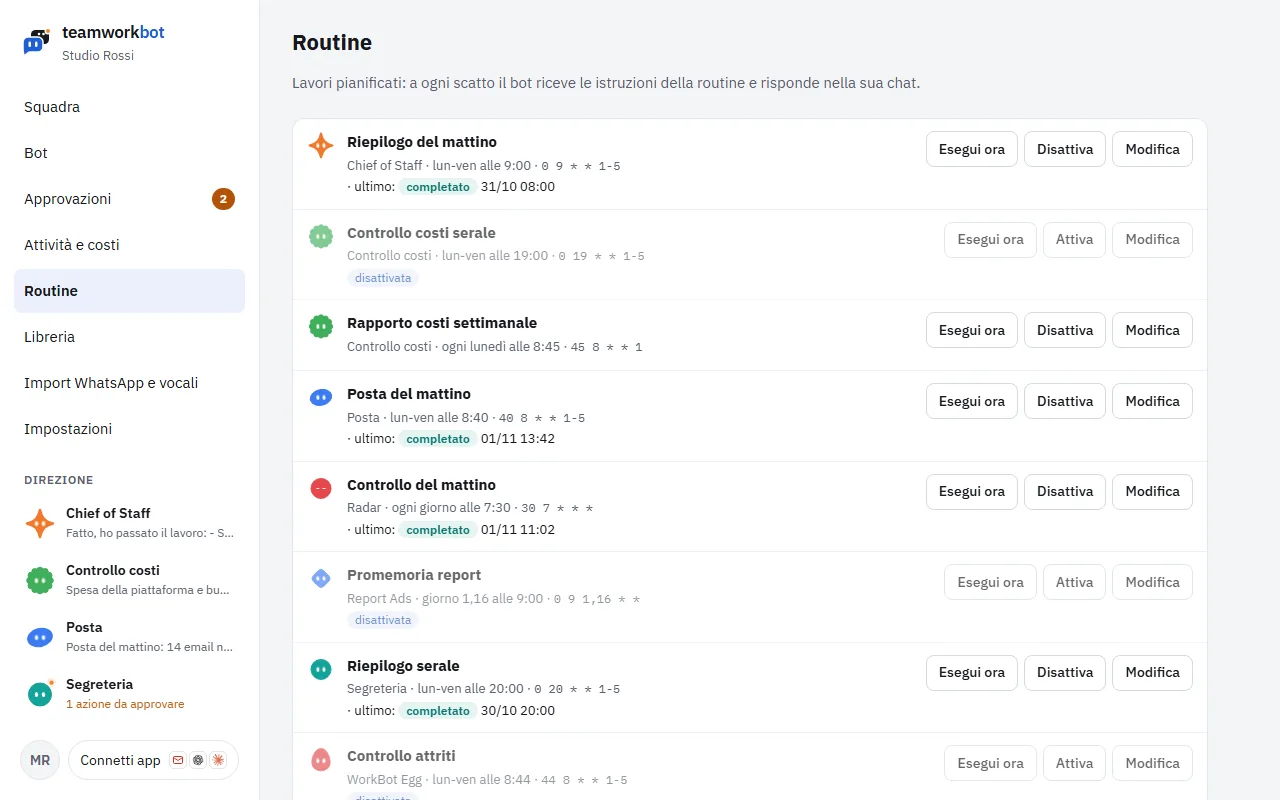
  • «Esegui ora» (Run now) starts it immediately, to try it out.
  • «Avvisami» (Notify me). When off, the result stays in the bot's chat and does not reach the team chat or Telegram.
  • Quiet routines. If there is nothing to report, the bot does not write: the run is only listed in Attività e costi.
The Routines page with active and disabled routines, the last outcome and the Run now, Enable and Edit buttons
Screenshot: The Routines page with active and disabled routines, the last outcome and the Run now, Enable and Edit buttons

8Adding and setting up bots

From the «Catalogo bot» (Bot catalogue) you add ready-made bots (Chief of Staff, WorkBot Egg, Segreteria/Secretary, Posta/Mail, Preventivi/Quotes, Account, Report Ads, Radar, Controllo costi/Cost control, the Social team, Videomaker and more). They come with instructions, tools and routines switched off: then you adapt them.

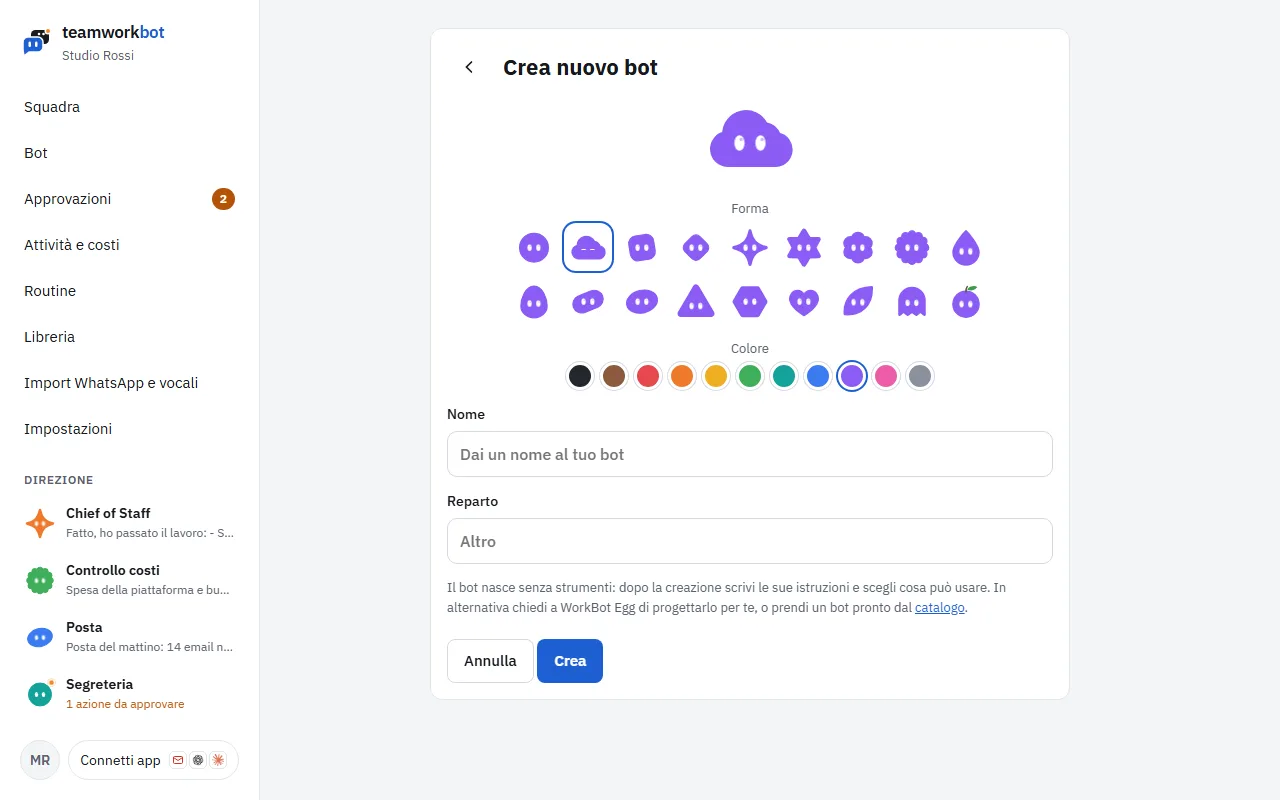
With «Nuovo bot» (New bot) you create one from scratch by picking a name, department, shape and colour. It starts without tools: write its instructions and choose what it may use. Or ask WorkBot Egg to design it with you: it asks a few questions and proposes the bot, which is created only after you approve it.
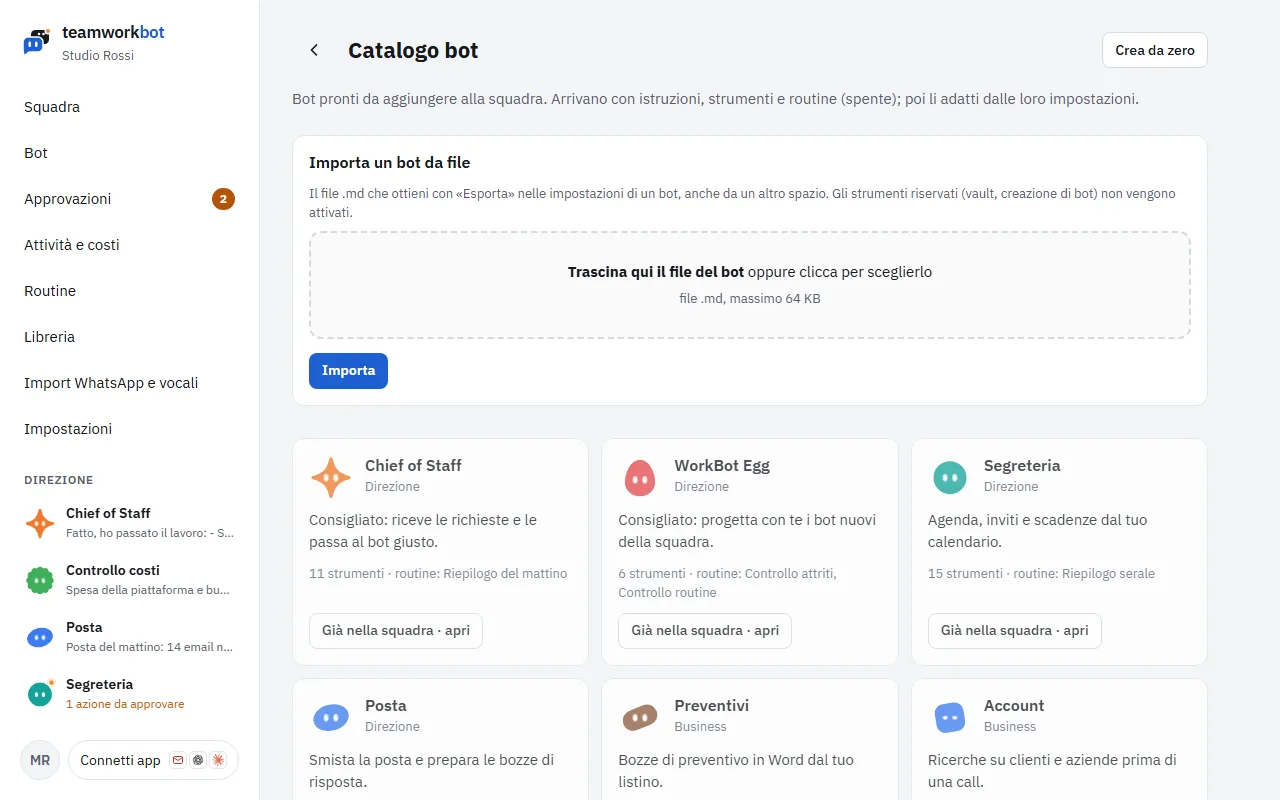
The bot catalogue with file import and the ready-made bots
Screenshot: The bot catalogue with file import and the ready-made bots
Creating a new bot by choosing its shape and colour
Screenshot: Creating a new bot by choosing its shape and colour

9A bot's settings

  • Identità (Identity): name, title, department, shape and colour, status (active or paused).
  • Istruzioni (Instructions): what the bot does and how. Every change is kept in the history.
  • Modello e limiti (Model and limits): the Claude model (Haiku is cheap and good for routing, Sonnet for everyday work, Opus for long analyses), how much it should reason, the maximum budget of a single job and the maximum number of steps.
  • Strumenti (Tools): what it may use (email, calendar, web search, documents, Library, MCP servers…). Tools that reach other people always go through approvals.
  • Note di lavoro (Work notes): short reminders the bot writes for itself (for example "Bianchi prefers short emails"). You can edit or delete them.

«Esporta» (Export) downloads the bot as an .md file; you can import it into another space from the catalogue.
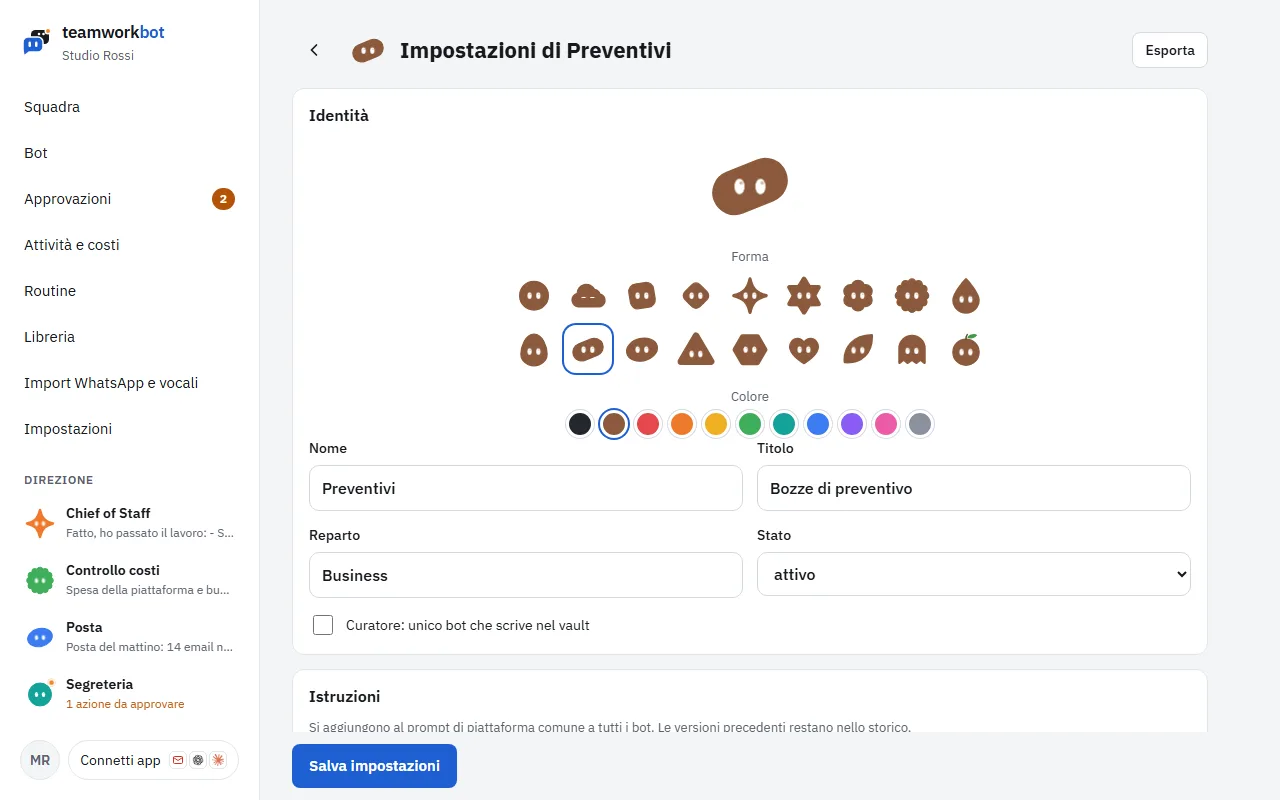
Settings of the Preventivi (Quotes) bot: identity, instructions, model and limits, tools
Screenshot: Settings of the Preventivi (Quotes) bot: identity, instructions, model and limits, tools

10Memory, Library and vault

  • Libreria (Library). The space's images, videos and documents: those created by the bots (Word quotes, reports, images), chat attachments and files you upload. Organise them into folders; the bots can find them, and with «Manda a» (Send to) you pass a file to a bot.
  • Obsidian vault (optional). If you keep your client notes in Obsidian on GitHub, connect it in Impostazioni → Spazio e vault (Settings → Space and vault). All bots read it; only the Curator writes to it: it adds news to each client's timeline and proposes changes to the notes as pull requests for you to approve.

11Connecting your services

In «Impostazioni» (Settings) you find the space (name, time zone, monthly budget, members, keys, automatic approvals, audit log) and the apps you can connect, each with its own page and the status «da collegare» (to connect) or «collegato» (connected).

  • «Chiavi e segreti» (Keys and secrets): the space's Anthropic key and the other keys. They are encrypted and cannot be read back: you can only replace them.
  • «Caselle email» (Mailboxes): one or more mailboxes (IMAP and SMTP). For each bot choose whether it reads and whether it writes. Drafts land in the Drafts folder of your email app; sending goes through approvals.
  • Google Calendar and Drive: calendar for the Secretary and read-only Drive files.
  • Telegram: team chat and approvals from your phone.
  • MCP servers (Canva, Stripe, Windsor.ai…): reads are free, writes go through approvals.
  • Webhook: incoming data and files to a bot, and outgoing flows (started by the bots, with approval) with Pabbly Connect, Make, Zapier or n8n.
  • Replicate: images, video and audio, with an estimated cost and a daily maximum per model.
  • Claude.ai, Cowork and ChatGPT: talk to your bots from there too. Approvals stay here and on Telegram.

Web search and page reading are switched on per bot, among its tools: Anthropic runs them, so there is nothing else to connect.
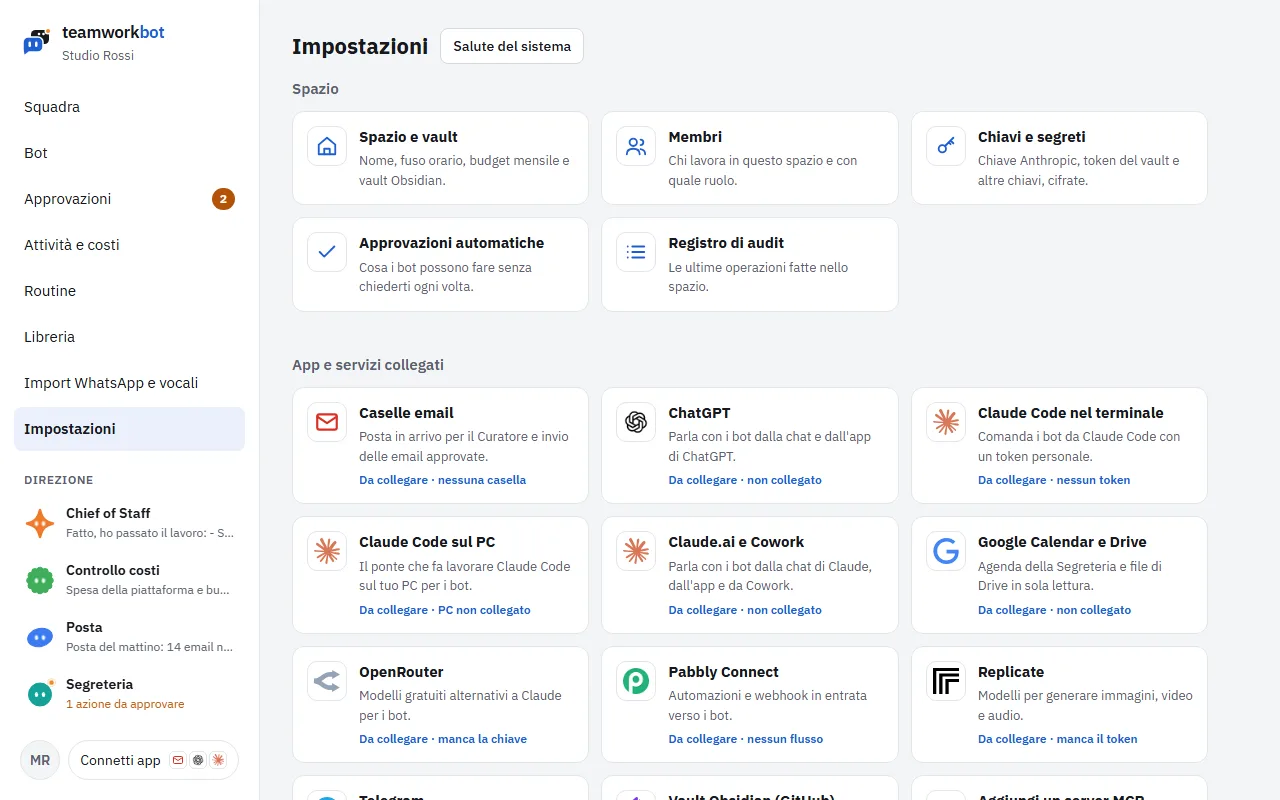
Settings with the space options and the connected apps and services
Screenshot: Settings with the space options and the connected apps and services

12Importing WhatsApp chats and voice messages

In WhatsApp, export a chat ("Export chat", preferably "with media" to include voice messages) and upload it here, or upload a single audio file. Voice messages are transcribed; on its next run the Curator records what matters. Importing the same export again creates no duplicates.
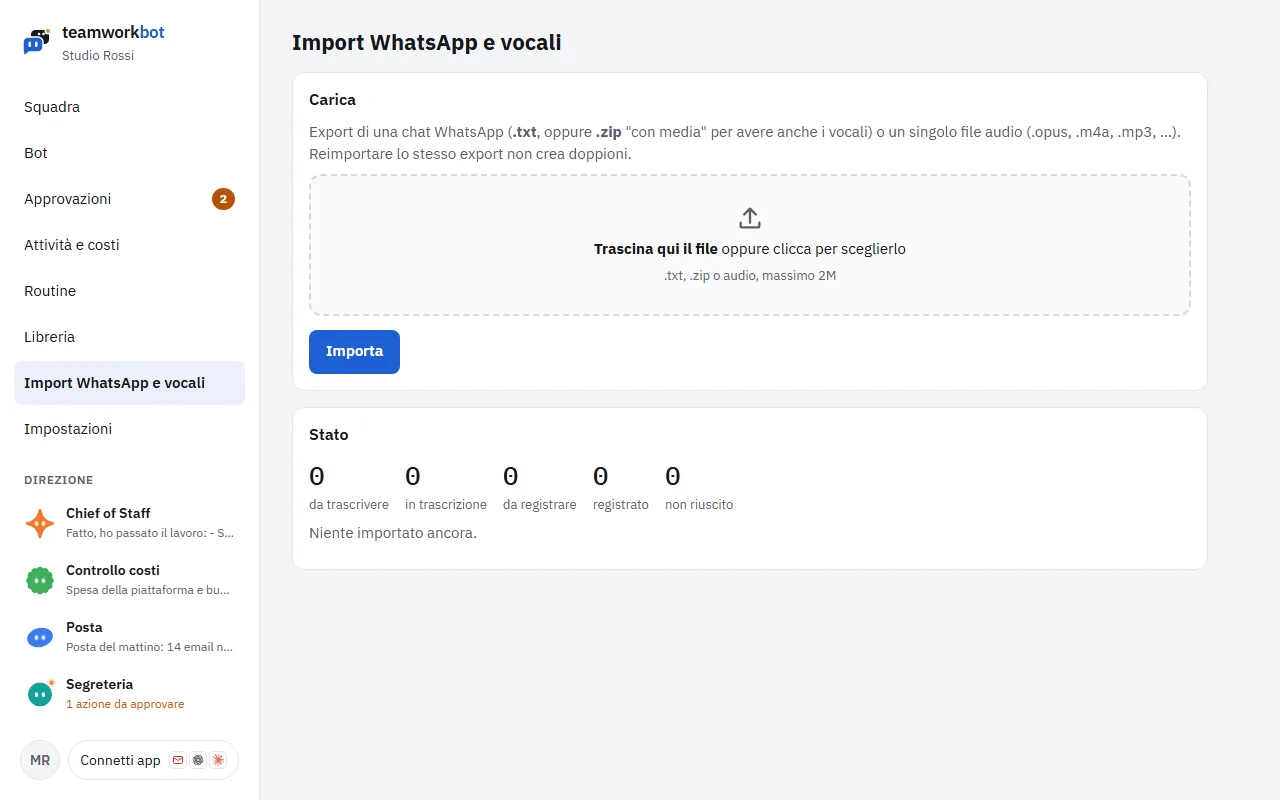
The WhatsApp and voice import page with the upload area and the status
Screenshot: The WhatsApp and voice import page with the upload area and the status

13Activity and costs

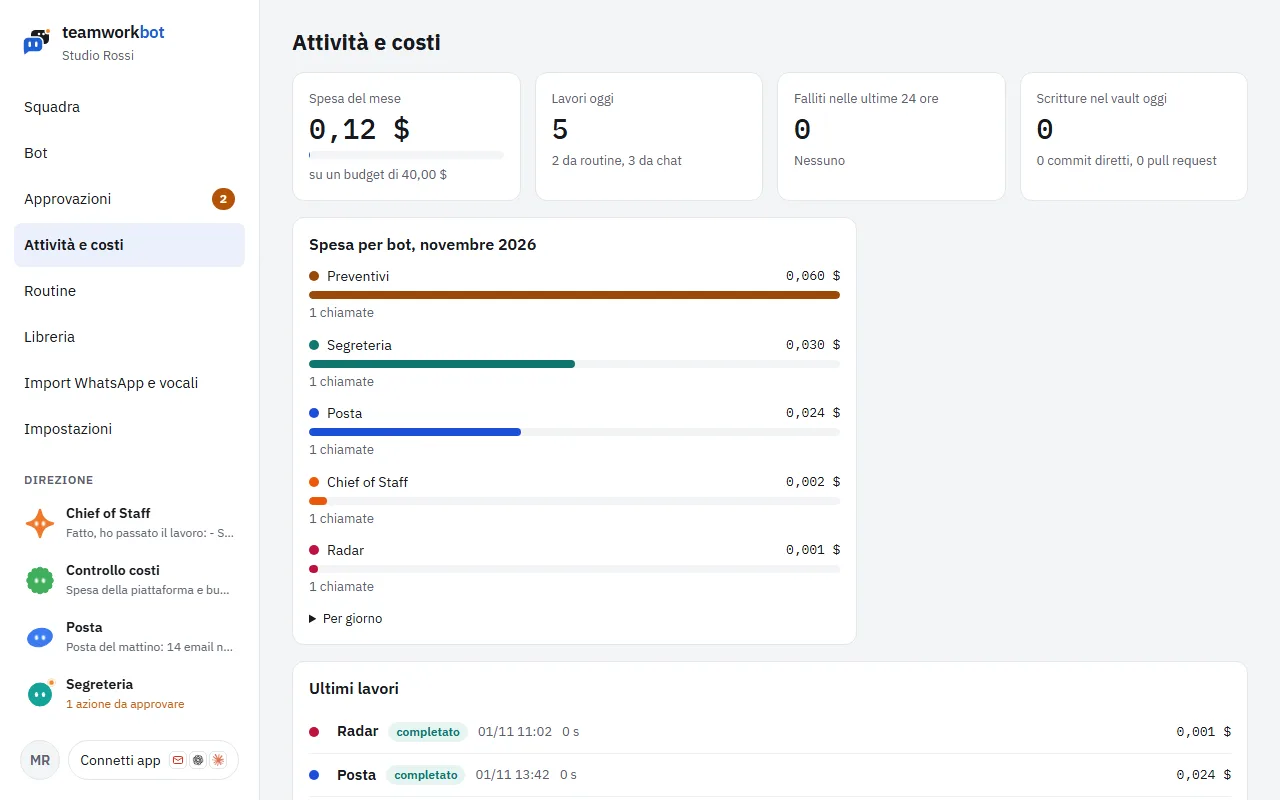
Every bot job is recorded with its cost. In «Attività e costi» (Activity and costs) you see this month's spend against the budget, today's jobs, failed ones, spend per bot and per day, and the latest jobs with the detail of their steps.
  • Monthly budget (Impostazioni → Spazio e vault): when the cap is reached, the bots stop until the next month. A warning appears at the top of the pages at 80% and 100%.
  • Job budget (bot settings): stops a single job that gets too long.
  • Controllo costi (Cost control): a bot that sends you a weekly report and suggests savings, for example a cheaper model. Changes apply only after your approval.
Activity and costs: this month's spend against the budget, today's jobs and spend per bot
Screenshot: Activity and costs: this month's spend against the budget, today's jobs and spend per bot

14Using your bots from Claude, Cowork, ChatGPT and Claude Code

teamworkbot is also an MCP server: connect your space to Claude or ChatGPT and talk to your team from there, with the permissions of your role.

  • claude.ai and Cowork: Settings → Connectors → Add custom connector, address https://teamworkbot.com/mcp, then Connect and authorise with your teamworkbot account.
  • ChatGPT: Settings → Apps and connectors (developer mode) → new connector with the same address and OAuth authentication.
  • Claude Code: claude mcp add --transport http teamworkbot https://teamworkbot.com/mcp, then /mcp and authorise in the browser. If you prefer, create a personal token in Impostazioni → Claude Code nel terminale (Settings → Claude Code in the terminal).

What you can ask, for example: "ask the team to prepare the October report" (team_chat), "what did the Secretary do today?" (activity_list, bot_history), "create a bot that every Monday sums up my clients' Google reviews" (bot_create, owner only), "add web search to Quotes" (bot_update), "send this PDF to Quotes" (library_upload), "turn on the morning summary" (routine_toggle), "how much have I spent this month?" (space_info, cost_report).

All the tools: space_info, bots_list, bot_get, bot_history, bot_chat, team_chat, team_history, run_wait, activity_list, bot_create, bot_update, bot_export, catalog_list, catalog_import, library_search, library_get, library_upload, routines_list, routine_run_now, routine_toggle, approvals_list, cost_report, search and fetch.

Approvals are read-only from there. If you want to decide them from Claude or ChatGPT too, switch it on in Impostazioni → Approvazioni automatiche (Settings → Automatic approvals): the approval_decide tool appears. The Curator's actions must still be decided in the app.

15Spaces, members and security

  • Members: in Impostazioni → Membri (Settings → Members) add other people with a role: operatore (operator: uses the bots and decides approvals), lettore (viewer: sees everything, decides nothing), proprietario (owner: settings and keys too). People without an account get a temporary password, which you pass on to them.
  • Several spaces: if you belong to more than one, switch between them from the personal menu at the bottom of the sidebar.
  • Security: service keys are encrypted and the bots never see them; each space is separate; logins, approvals and changes go into the Registro di audit (Audit log). The text of emails, web pages and documents is always data for the bots, never an order: instructions come only from you.

16Plans and pricing

Monthly prices, VAT excluded. Model usage is included up to the plan's threshold: beyond it you pay as you go, and the space's monthly budget stops the bots at the cap you choose.

Solo

49 €/month

For consultants and freelancers. Bots from the catalogue, routines, email, calendar, Telegram, Drive and MCP servers. Email support within 2 working days.

20 $ of model usage included per month

Subscribe · Coming soon

Solo with your own key

29 €/month

Like Solo, with your own Anthropic key and no usage included.

With your own Anthropic key: you pay usage directly to Anthropic

Subscribe · Coming soon

Managed

99 €/month
+ 490 € setup

"We do it for you": we set up mailboxes, calendar, memory, routines and bot instructions around your work and support you for the first month. Up to 30 minutes of support per month.

20 $ of model usage included per month

Subscribe · Coming soon

Agency

149 €/month

For studios and small agencies: 5 spaces, one per client, with separate costs and approvals. Extra space 25 €/month. Priority support up to 30 minutes per month.

60 $ of model usage included per month

Subscribe · Coming soon

Partner installation

Fee to be defined

For agencies that resell: installation on your hosting with your brand and your key. Platform fee plus a fee per active space.

With your own Anthropic key: you pay usage directly to Anthropic

Subscribe · Coming soon
  • Usage beyond the included amount: 1.25 € per dollar, shown in Attività e costi (Activity and costs).
  • Images and video (Replicate): at the model's estimated cost plus 25%.
  • Custom bots, integrations and training: quoted separately.

Meanwhile, join the waiting list: the first spaces open by invitation, with a 14-day trial and 5 $ of usage included.

Need help?

Write to support@teamworkbot.com. If a bot does not reply, check Attività e costi (Activity and costs) first: a failed job or a reached monthly budget shows up there.

← Back to the presentation